

Why Fixed Font Sizes Don’t Work Anymore
Remember when we designed for 1024×768? Those days are long gone. Now we’re building for everything from 320px smartphone screens to 2560px ultrawide monitors. Setting font sizes to fixed pixels (like 16px or 24px) is like wearing one-size-fits-all shoes — they fit nobody perfectly.
The real challenge isn’t picking the “right” size. It’s creating typography that feels natural at every viewport width. Too small on mobile and you’re squinting. Too large on desktop and it looks awkward. That’s where fluid typography comes in.
Educational Content
This guide provides technical information about CSS typography methods and responsive design principles. While we’ve tested these techniques across browsers, your specific implementation may vary based on your project requirements, browser support needs, and user demographics. Always test thoroughly in your target environments.

Understanding CSS clamp()
The modern approach uses CSS clamp() — a function that takes three values: minimum, preferred, and maximum. It’s beautifully simple. The syntax is
clamp(MIN, PREFERRED, MAX)
.
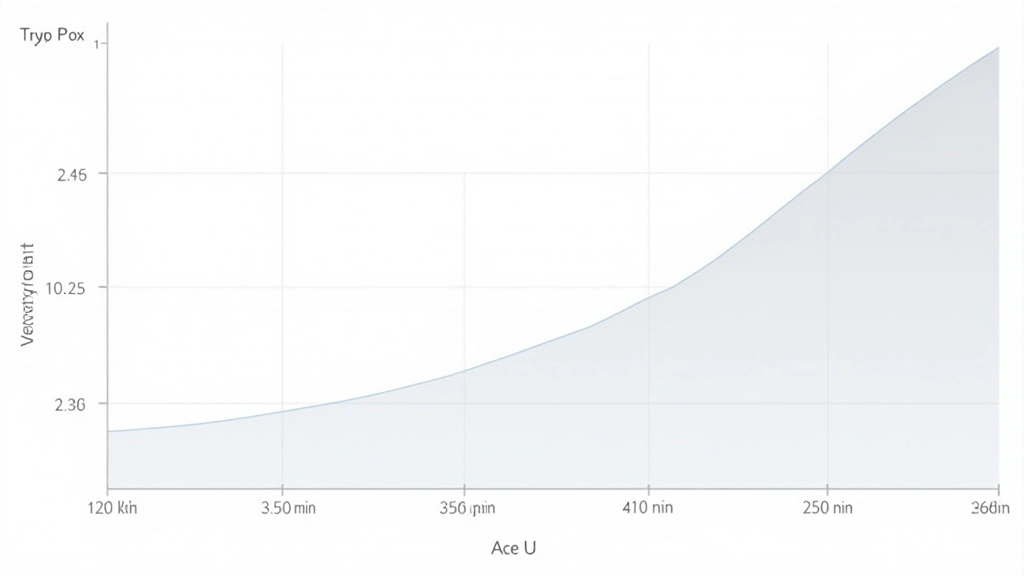
Here’s what happens: your text starts at the minimum size. As the viewport grows, it scales proportionally based on the preferred value. But it never gets larger than the maximum. You’re not fighting against rigid breakpoints anymore — you’re creating a smooth, continuous scaling curve.
Real example:
h1 { font-size: clamp(1.5rem, 5vw + 0.5rem, 3.5rem); }
Three Key Benefits of Fluid Typography
Fewer Breakpoints
You don’t need media queries for every font size anymore. Instead of creating separate styles for mobile, tablet, and desktop, fluid typography scales continuously. Less code. Fewer things to maintain.
Better Readability
Text scales proportionally with the viewport. This means line lengths and visual hierarchy stay balanced across all devices. Paragraphs don’t get weirdly cramped or impossibly wide. Readability just works.
Smooth Experience
No jarring jumps when you cross a breakpoint. Typography changes smoothly as you resize your browser or rotate your device. It feels intentional and polished, not like a design that suddenly shifts.
Building a Fluid Typography System
Start with your base font size. Most modern sites use 16px as the browser default, which works fine. But you’ll need to establish a scaling system for headings.
Let’s say you want h1 to be at least 24px on mobile and at most 56px on desktop. On a Hong Kong market site targeting everything from iPhone 13 mini (375px) to 27-inch iMacs (2560px), you’d write something like:
clamp(1.5rem, 8vw, 3.5rem)
.
The 8vw is your “preferred” value — it scales with the viewport width. At 375px width, 8vw equals 30px. At 1440px, it’s 115px. The clamp function keeps it between your min (24px/1.5rem) and max (56px/3.5rem) bounds.
Explore More Responsive Design Techniques



Moving Forward with Fluid Typography
Fluid typography isn’t just a nice-to-have technique anymore — it’s becoming standard practice. Major design systems use it. Modern browsers support it fully (even Internet Explorer finally faded away). You’re not adopting some experimental feature; you’re following what the industry’s moving toward.
The beauty of clamp() is that it works alongside your other responsive techniques. You’ll still use media queries for layout changes. You’ll still use Grid and Flexbox. But for typography? Clamp handles the heavy lifting.
Start with your h1. Add clamp() to that. Test it across devices. You’ll immediately see how much smoother your design feels. Once you’ve got that working, roll it out to h2, h3, body text, and beyond. Build your own fluid typography system. Your Hong Kong users on everything from budget Android phones to premium iPhones will thank you.